hi guys i take no credit for this found here
Code
http://myandroidblog.wordpress.com/2009/08/03/htc-hero-root-access/
HTC Hero Root access
By fakker1
1. Download:
1.
Code
http://developer.android.com/sdk/download.html?v=android-sdk-windows-1.5_r3.zip
2
Code
. http://rapidshare.de/files/47972320/orange-htc-hero-uk-boot.img-28-july-2009.zip.html
2. Install HTC Sync from your HTC device
1. Connect device to computer using USB cable.
2. Mount the SD card from the HTC Alerts Menu (Drag from the top of the screen).
3. Install the sync application from the newly discovered drive in Windows.
3. Extract the two zip files into some folder (separate folders for each zip).
4. Go to the Android SDK folder and open the tools folder.
5. Copy the two files from the boot image zip (1.b) into the tools folder:
1. boot.img.insecure
2. boot.img
6. Shutdown the phone.
7. Press and hold the back key and power on the phone.
This is get you into the fastboot screen (the white screen with three androids at the bottom).
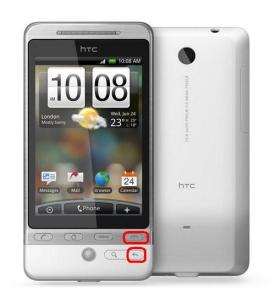
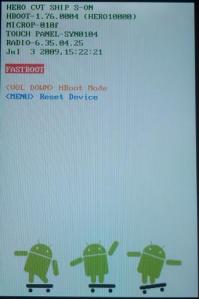
8. Connect the phone to the USB cable if its unplugged.
9. On Windows, open cmd.exe (Start -> Run -> cmd.exe -> Enter):
1. Change the directory to the tools directory youve created earlier.
2.
Run fastboot.exe boot boot.img.insecure from within the tools directory.
Output:
downloading 'boot.img'... OKAY
booting... OKAY
3. Now your device will start from the given image with root access.
10. Gain root access:
1. In the phones alerts menu, click HTC Sync. This will popup the HTC Sync tool in Windows. Ignore it!
2.
In cmd type: adb.exe shell
Output:
#
3. From the prompt you got (#) run the following command to mount the phones file system in RW mode:
mount -o rw,remount -t yaffs2 /dev/block/mtdblock3 /system
11. Add su command to your Phone
1. Run the the following commands in the shell (#) Run each command separately (dont just copy-paste all the lines!):
1.
cat /system/bin/sh > /system/bin/su
2.
chmod 4755 /system/bin/su
2.
12.
Reboot the phone by typing reboot in the shell (#).
13. The phone will restart and load the original Android ROM.
14. Enjoy the your Rooted Device
Thanks To : adq from the xda forum for the rooting info.
GRTZ CYBER WEESJE
ADMINISTRATOR@Wckediden HIT THANKS ON THE WAY OUT