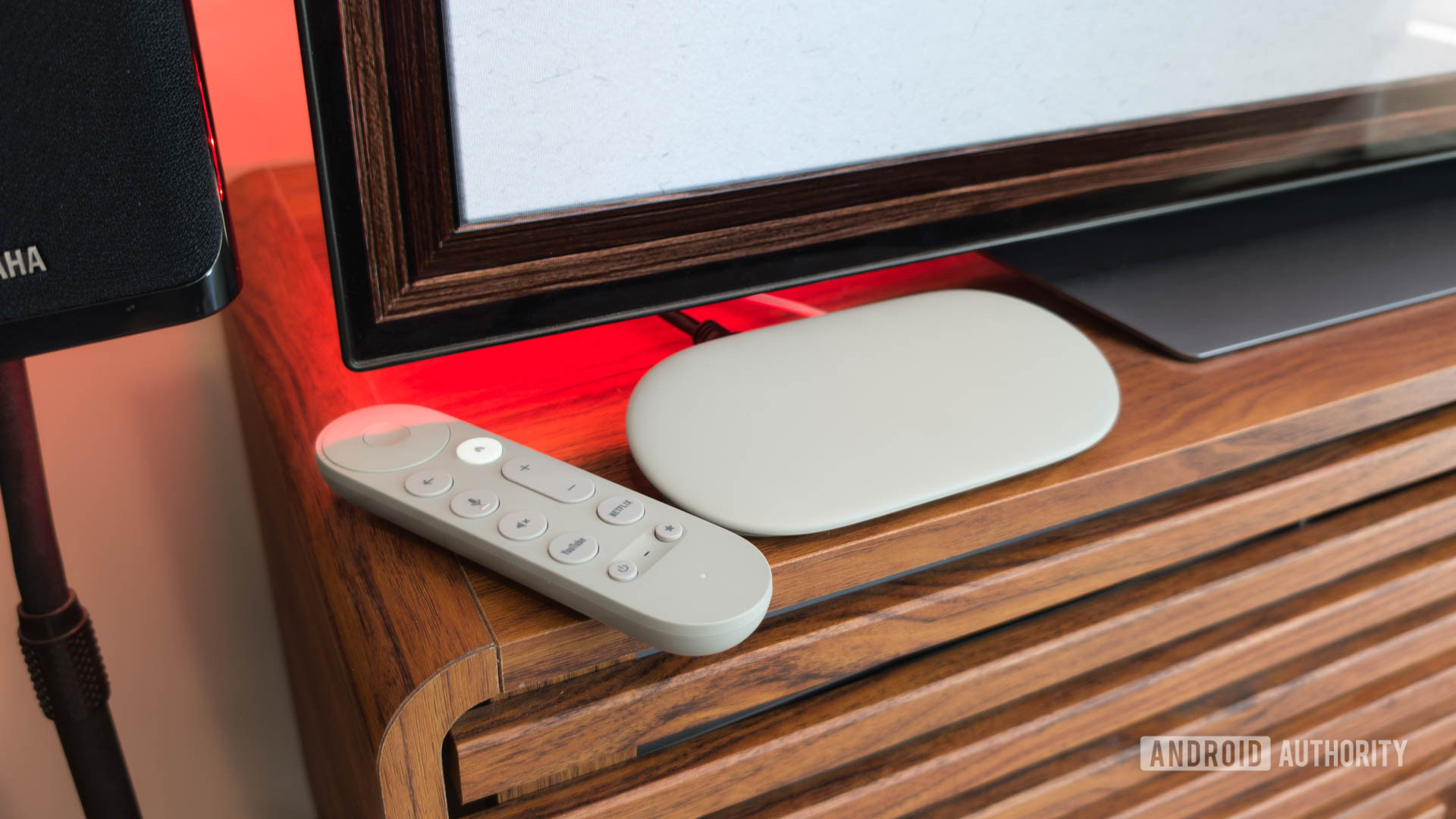
Credit: C. Scott Brown / Android Authority
The
Google TV Streamer was one of the more surprising new products we saw from Google in 2024. Google had been fully invested in the small, dongle-like
Chromecast for a decade, so it wasn’t totally expected that it would launch a more traditional streaming box. Regardless, thanks to its unique features, solid performance, and fair price, it was one of my favorite new Google devices of the year.
If you just got yourself a Google TV Streamer, you might wonder what you can do with it. Thankfully, Google’s onboarding process, which you go through when setting up the streamer for the first time, gives you a terrific overview of its capabilities. You can see suggested content, create a watchlist, generate AI screensavers, turn your TV into a giant digital photo frame, and more. However, there are some things you can do with the Google TV Streamer that the onboarding sequence doesn’t hit on (or doesn’t explain just how much you can do).
More...